Showing posts with label Java IDEs. Show all posts

Monday, November 5, 2007

Introducing JavaFX: Sun’s new family of Java-based products

Introducing JavaFX: Sun’s new family of Java-based products
Author: Peter Mikhalenko


JavaFX is a new family of products and technologies from Sun Microsystems that you can use to create Rich Internet Applications (RIAs). JavaFX currently consists of JavaFX Script and JavaFX Mobile; other JavaFX products are planned for release in the future.
JavaFX is anticipated to compete in the space already occupied by
Adobe AIR and Microsoft’s Silverlight technologies. In a nutshell, Adobe AIR enables Flex and DHTML developers to build applications for the desktop; Silverlight allows developers to build rich media applications that run in the browser; and JavaFX Script lets developers build rich UIs for Java applications.

JavaFX products
JavaFX Mobile is a complete mobile operating and application environment built around Java and Linux. JavaFX Script is a highly productive scripting language for content developers to create rich media and content for deployment on Java technology. JavaFX Script is the core of the JavaFX family, and it’s the most interesting part of the product set. (Sun thinks that developers will shorten JavaFX Script to JavaFX in conversations, as long as JavaFX Script is the core in the JavaFX product family.)

JavaFX Script is intended to simplify the creation of rich UIs for Java clients. JavaFX Script is implemented in Java, and it uses Java APIs for 2D and 3D graphics as well as UI controls. JavaFX Script supports a declarative syntax for UI definition that is somewhat similar to the ones used by Microsoft in XAML and Adobe in MXML, yet it’s not XML-based. In fact, it’s a real programming language — not just a markup tool — so you can write an entire application in JavaFX Script.

If you want to write JavaFX applications directly from the IDE, the best way to do that is to download and install JDK 6.1 with NetBeans 5.5.1 or 6.0 and then install the JavaFX Script plug-in for NetBeans 5.5.1 or the JavaFX Script plug-in for NetBeans 6.0. There is also a JavaFX plug-in for Eclipse.

There is a separate initiative called OpenJFX Compiler, which focuses on creating a JavaFX compiler to translate JavaFX scripts directly into JVM class files (bytecode) without any intermediate steps. It is still in the very early stages of design and implementation.

Hello World application
This is the typical “Hello World” application:


import javafx.ui.*;
Frame { title: "Hello World JavaFX"
width: 300
height: 100
content: Box {
content:
[Label {
text: "Hello World"
toolTipText: "Tool tip"
font: Font {
size: 18
}
border: EmptyBorder {
top: 10
left: 10
}
background: Color {
blue: 255
green: 255
red: 255
}
}]
}
visible: true
}
View the code online.

In order to run this application in NetBeans 5.5, you need to follow these steps:
1. Launch NetBeans 5.5.
2. From the main menu, go to File New Project.
3. In the New Project window, select the General category, select Java Application project, and click Next.
4. In the New Java Application window, type FXExample in the Project Name text field.
5. In the same window, use the Browse button to select the location of the project.
6. Uncheck the Set As Main Project and Create Main Class check boxes and click Finish.
7. Right-click on the FXExample Source Packages and select New - File/Folder.
8. In the New File window, select the Other category, select the JavaFX File file type, and click Next.
9. In the New JavaFX File window, type “HelloWorld” for the File Name, type “src” for the Folder, and click Finish.
10. Copy the code from Listing 1 and paste it in HelloWorld.fx.
11. Right-click FXExample project and select Properties.
12. In the Project Properties - FXExample, select the Run node from the Categories pane.
13. In the Arguments text field, type “Hello World” and click OK.
14. Right-click FXExample project and select the Run Project option.
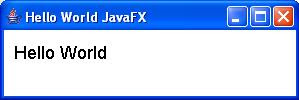
If everything works, you should see the Hello World application running (see Figure A).
Figure A

To read the complete article click on the link: http://blogs.techrepublic.com.com/programming-and-development/?p=539&tag=nl.e138

Sunday, October 28, 2007

Yet another Ajax toolkit: Eclipse RAP 1.0

Yet another Ajax toolkit: Eclipse RAP 1.0

Wouldn’t it be nice if you could write your application once and then reuse the code in both a) a “fat client” for high interactivity and offline usage, and b) a “thin client” inside a web browser for ubiquitous access with zero install? The Eclipse Rich Ajax Platform (RAP) library provides one way to do just that.
RAP version 1.0 was released today. According to the project site,

The RAP project aims to enable developers to build rich, Ajax-enabled Web applications by using the Eclipse development model, plug-ins and a Java-only API.

At its core, RAP provides a port of the Standard Widget Library (SWT) for web applications. The SWT API is pretty general, with implementations running on desktops (on Swing or native windowing APIs), smart phones, and now the web.

With RAP, all your logic runs on the server, and the library intelligently renders the user interface bits using browser-side JavaScript (using qooxdoo under the covers). It’s zero-install, and doesn’t even require a browser plug-in.

RAP lets many existing Eclipse RCP applications based on Java and OSGi standard technologies to be used on the web with minor code changes. For obvious performance reasons, RAP doesn’t go back to the server for every keystroke, and the interactivity isn’t quite the same as you could get with a SWT or Swing fat client. However it works surprising well, especially if you’re deploying on a low-latency intranet system. See this site for a live demo, or download it and judge for yourself.

Inevitably, RAP will be compared to other toolkits like the Google Web Toolkit (GWT), Open Laszlo, Adobe AIR, Backbase, Echo2, and many, many more. There isn’t a single best framework for all applications. AIR (formerly Apollo) is perhaps its closest competitor because both AIR and RAP have a goal of letting you deploy applications on both the desktop and the Web. Both frameworks approach the problem from a different angle - AIR from the point of view of moving Web apps to the desktop, and RAP from the point of view of moving desktop apps to the Web. RAP has the advantage of being completely open source, while AIR has the advantage of a top-tier, well established and funded backer.

I’m still rather fond of GWT, though. GWT lets you split your application into client and server side parts that are written in the same language (Java). One thing that GWT is missing is a fat-client incarnation. While you can support some offline activity using Google Gears, it’s a stretch from there to having a shortcut on your desktop that will launch a local application that doesn’t require any net access.

Google Web Toolkit: Towards a better web

Google Web Toolkit: Towards a better web

8/28/2007 01:12:00 PM

Posted by Bruce Johnson and Dan Peterson, Google Web Toolkit team


We're very pleased to tell you that the Google Web Toolkit (GWT)is no longer in beta as of today's release of GWT 1.4. For Java developers who have used GWT to create high-end web applications over the last year, this may not seem all that surprising. But if you haven't yet heard the story behind GWT, this seems like the perfect time...


If you've been in the technology industry for a while, you probably remember when enterprises and software vendors had to think pretty hard about whether to develop locally-installed desktop applications or web-based browser applications. These days, whether you're building mashups, gadgets, or full-blown applications, it's a no-brainer: the browser is the delivery platform of choice. However, users expect more from the up-and-coming generation of web applications than the simple click-and-wait of yesterweb. And if you're a web developer, you know that this requires AJAX, the cluster of technologies including JavaScript and dynamic HTML that can make browsers do backflips.

But the stark reality of AJAX applications is that, although they can deliver sexy features and great usability, they are unusually hard to engineer. Browser quirks and the anything-goes nature of JavaScript will inevitably frustrate even the most dedicated developers and add risk to your schedule with every line of code written. If you do eventually manage to construct a complex AJAX application that works, you're likely to find that maintaining it over time can be a major challenge. And all that doesn't even scratch the surface of testing, optimizing, securing and internationalizing your application. (If you are currently working on an ambitious AJAX project and haven't yet come to this conclusion, please re-read this post in six months when you're further along!)

We've learned a lot from our experiences building web applications, and we're happy to share the tools we've created. Google Web Toolkit is an open source project that helps Java developers harness the richness of AJAX in a cross-platform, web-friendly environment. The magic trick is that GWT cross-compiles Java source code into standalone JavaScript that you can include in any web page. Instead of spending time becoming JavaScript gurus and fighting browser quirks, developers using GWT spend time productively coding and debugging in the robust Java programming language, using their existing Java tools and expertise. Naturally, GWT is also a great way to easily take advantage of the latest-and-greatest Google APIs and browser enhancements, such as Google Gears.

In addition to making debugging far easier, GWT's unique compilation-based approach to AJAX has the nice property that it rewards developers for good software engineering practices. Java source code that is clear and organized can be easily optimized by the GWT compiler, which is a nice antidote to the frequent hack-and-slash approach that's all too common in JavaScript development. As your application grows, the GWT compiler begins to pay off in even bigger ways. Unused code is automatically removed so that scripts are smaller and pages load faster. Complex code can be automatically coalesced and simplified. Most importantly, because the Java language is statically typed, many common errors can be caught during development rather than production. You can observe the high-performance results yourself in GWT's sample Mail application.


Technical details aside, GWT makes it easy to develop fast, friendly web apps that users love — which is, after all, the point.


Download GWT 1.4.

Thursday, October 25, 2007

Jigloo SWT/Swing GUI Builder for Eclipse and WebSphere

Jigloo SWT/Swing GUI Builder for Eclipse and WebSphere

Current version: 4.0.2 released Sep 19th 2007 (Swing AppFramework v 1.0 support, Mac OSX, Matisse GroupLayout support, Tab order editor for Swing and SWT; non-setter method support; Property categories; palette editor; import beans from archive; improved layout support; alignment assistant; improved L&F support; improved parsing; Eclipse 3.3 supported; bugs fixed; et).
Introduction
Note: Jigloo is free for non-commercial use, but purchase of a Professional License is required for commercial use (after successfully evaluating Jigloo).CloudGarden's Jigloo GUI Builder is a plugin for the Eclipse Java IDE and WebSphere Studio, which allows you to build and manage both Swing and SWT GUI classes.

Jigloo creates and manages code for all the parts of Swing or SWT GUIs as well as code to handle events, and shows you the GUIs as they are being built. Jigloo parses java class files to construct the form that you use when designing your GUI (round-tripping), so it can work on classes that were generated by other GUI builders or IDEs, or hand-coded classes. It can also convert from a Swing GUI to a SWT GUI and vice-versa.

Jigloo is straightforward, fast, powerful, easy to use and fully integrated with Eclipse. It can lead to substantial time-savings for GUI development and maintainance tasks. Jigloo is highly-customizable: the parts of your code which Jigloo will parse can be restricted, and the classes which are instantiated when Jigloo parses your code and constructs the Form editor can be specified using patterns. The code generated by Jigloo can also be customized, and existing code can be re-arranged to follow the preferred style (eg, using getters for GUI elements, or separating elements by blank lines, braces or tagged comments).

Custom classes can be added to forms, and JavaBeans with Customizers and custom properties are supported. In addition, Jigloo supports visual inheritance - it can design classes which extend other custom classes, which may be public, abstract or non-public. Navigation between code and form editors is very easy - with Jigloo highlighting the relevant section of code when the form editor has focus, or the relevant form element when the code editor has focus.Components are added, layouts changed etc, by selecting from a palette, or by options in the right-click context menus. They can be resized and dragged about in the form editor and in the outline view, and their properties, layout constraints and event handlers can be changed easily in a properties editor. Multi-selection of components makes widespread changes easy to perform. Class-changing (eg, from a Composite to a Group, a combo-box to a text field, or to any custom class) can also save design time. The GUI can be "previewed" or run using editor actions.

A basic knowledge of the Swing and SWT components is useful, but not essential - and the javadoc can be easily accessed (by a right-click option) directly from the GUI editor.
Where does the name "Jigloo" come from?1) Jigloo = Jig + gloo - because a jig is used to hold pieces together while being assembled - with glue, or2) Jigloo = J + igloo - because if you can't think of anything better, then start your Java project with a J, and an igloo is a cool building.
Features and Requirements
Eclipse:2.1.*, 3.0*, 3.1*, 3.2*, 3.3
Java:1.3, 1.4, 5 or 6
Platforms:Windows, Linux (gtk) and Mac OSX. It has not been tested on other platforms, but may perform successfully on them
Download & InstallationNotes for Eclipse 2, and Java 1.3 users:

If you are using Jigloo with WebSphere with Eclipse 2, or just Eclipse 2 then you need to modify Jigloo's plugin.xml file to remove the following line: from the section of the file. Then restart Eclipse.
If you are using Java version 1.3 then you need to download this
xml.jar file and place it in the jigloo plugin folder, then restart Eclipse.
Installation using update manager:
Please note:
if you have installed 4.0 RC1 or RC2 you will need to delete these folders from the plugins and features folders in eclipse before installing version 4.0.You should use the Update Manager in Eclipse to download and install Jigloo - just open it (under "Help->Software Updates->Find and Install"). You will need to create a new remote site entry in the update manager for the Jigloo update-site - the url is: http://cloudgarden1.com/update-siteFor more detailed help,
read this.
Installation using zip file:

Please note: if you have installed 4.0 RC1 or RC2 you will need to delete these folders from the plugins and features folders in eclipse before installing version 4.0.Alternatively, you can download the zip file from here. Unzip it into the eclipse folder so that the structure is eclipse/plugins/com.cloudgarden.jigloo_4.0.0

Examples: You can create examples using Eclipse's "New" wizard - in Eclipse, choose "File->New->Other" and under "GUI Forms" you will see an "Examples" section.
Documentation and Tutorials:
Three tutorials come bundled with Jigloo, and can also be viewed online:
The documentation bundle "Jigloo GUI Builder User's Guide" is contained in the Jigloo plugin - after you install Jigloo, open up the "Help->Help Contents" menu in Eclipse and go to the entry for "Jigloo GUI Builder Guide". It is recommended you look at the "Quick Start" section in the Jigloo documentation before using Jigloo in earnest. Also, please read the FAQs, which address some common questions/problems. If you will be running SWT applications inside Eclipse, it is important that you read the "Preparing your project to use the SWT classes" part of the "Getting Started" section of the "Jigloo GUI Builder Guide".

Wednesday, October 24, 2007

NetBeans IDE


The NetBeans IDE is a free, open-source Integrated Development Environment for software developers. The IDE runs on many platforms including Windows, Linux, Solaris, and the MacOS. It is easy to install and use straight out of the box. The NetBeans IDE provides developers with all the tools they need to create professional cross-platform desktop, enterprise, web and mobile applications.

Swing GUI Builder (formerly Project Matisse)
Design Swing GUIs intuitively by dragging and dropping GUI components from a palette onto a canvas, then click into JLabels, JButtons, JTextFields and edit the text directly in place. You can even use the GUI builder to prototype GUIs right in front of customers. The NetBeans IDE comes with built-in support for GUI localisation and accessibility

Web Application Development
Create a complete functional JSF page for manipulating data from a database in a few steps. Supports JavaServer Faces (JSF), JavaServer Pages (JSP), Persistence Units, Struts, and the JavaServer Pages Standard Tag Library (JSTL). Comes with a visual editor for deployment descriptors and an HTTP monitor to debug web applications.

Web Services and Application Servers
NetBeans IDE works out-of-the box with Sun Application Server, Tomcat, Weblogic9 and JBoss 4, and it supports J2EE 1.4 and Java EE 5, including the JAX-RPC and JSR 109 standards.

Version Control
Version control is tightly integrated into the IDE's workflow: The IDE recognizes your existing CVS working directories automatically. Use the built-in CVS or get the Subversion module from the Update Center.
Developer Collaboration
With NetBeans Developer Collaboration (available from the Update Center), you share whole projects and files in real time over the network. Allow your co-workers to make remote changes and watch them type and run your application. Review your partner's work and send instant messages in plain text, XML, HTML, or Java complete with syntax highlighting.
Advanced Source Code Editor
The language-aware editor indents, completes, and syntax-highlights your source code. It parses your code live, matches words and brackets, marks errors, and displays hints and javadoc. The Editor can be fully customized and split vertically or horizontally, and offers well integrated Refactoring, Debugging and JUnit testing
Visual Web Development
The free Visual Web Pack adds powerful tools to the IDE that speed up the development of web applications. It includes visual editors for rapidly building standards-based web applications using AJAX, CSS, and JSF.
Service-Oriented Architecture (SOA)
The free Enterprise Pack adds all the functionality to the IDE needed for professional Service-Oriented Architecture (SOA) development. Write, test and debug applications using XML, BPEL, or Java web services.
Profiler
The free NetBeans Profiler provides expert assistance for optimizing your application's speed and memory usage. With its tight integration into the NetBeans IDE work flow, the Profiler helps you build reliable and scalable applications.
UML
With NetBeans UML modeling, your designers focus on the design of the application, and your developers focus on the code. First, designers and analysts design applications using UML, a standard modeling language, then developers generate source code from the UML model. Of course it works both ways: You can also update the model from changes made in the source code.
Java Mobility (Java ME)
The free Mobility Pack adds all the functionality to the IDE needed for professional Java ME development. Install the Mobility Pack for CLDC/MIDP if you develop for devices supporting CLDC and MIDP, or the Mobility Pack for CDC if you develop for smart communicators, set-top boxes, or PDAs.